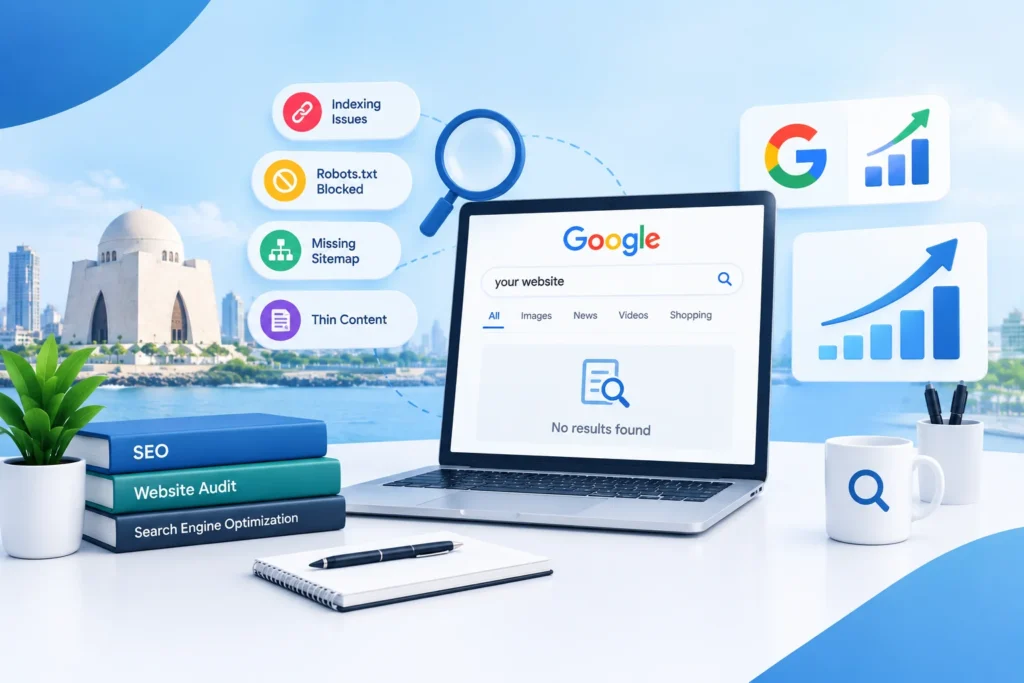
You typed your business name into Google and nothing came up. Or your website is live, but no one finds it. It is stressful, but it is common, and it is usually fixable.
This guide lists 9 reasons your website may not show on Google. For each one, you will see how to check it and how to fix it. You do not need to be an expert.
First, Do This Quick Check
- Type site:yourwebsite.com into Google. Replace it with your own address.
- If pages appear, Google knows your site, and the problem is ranking.
- If nothing appears, your site is not indexed yet. Indexed means Google has stored your page and can show it.
Next, set up Google Search Console. It is free, and it tells you exactly what Google sees. Use the URL Inspection tool to test any page.
9 Reasons Your Website Is Not Showing on Google
1. Your website is new
What is happening: Google needs time to find and trust a new site. It can take days or weeks.
What to do: Submit your sitemap in Search Console and request indexing for your main pages. Then keep adding good content. Be patient, but do not just wait.
2. A “noindex” setting is blocking you
What is happening: A noindex tag tells Google not to show a page. On WordPress, a single box called “Discourage search engines from indexing this site” can do this to your whole website.
What to do: In WordPress, go to Settings, then Reading, and make sure that box is unchecked. Also check your SEO plugin for pages set to noindex.
3. Your robots.txt file blocks Google
What is happening: The robots.txt file tells search bots where they may go. A wrong line can block your entire site.
What to do: Open yourwebsite.com/robots.txt. If you see “Disallow: /” under “User-agent: *”, ask your developer to fix it.
4. Google does not know your pages exist
What is happening: Without a sitemap and Search Console, Google may miss pages.
What to do: Create an XML sitemap (most SEO plugins do this), and submit it in Search Console.
5. Your content is thin or copied
What is happening: Google may skip pages that are short, repeated, or look the same as other pages. You may see “Crawled, currently not indexed” in Search Console.
What to do: Make each page useful and different. Answer real questions, add real details, and avoid using the same text on many pages. Our SEO content writing team can help with this.
6. Your pages have no internal links
What is happening: A page that no other page links to is hard for Google to find.
What to do: Link to every important page from your menu, homepage, or related pages. Learn how in our on-page SEO guide.
7. Technical problems slow Google down
What is happening: Slow pages, errors, broken links, and bad mobile design make it harder for Google to crawl and for people to stay.
What to do: Test your speed with Google PageSpeed Insights and fix errors listed in Search Console. Our technical SEO service covers these checks.
8. A penalty or spam problem
What is happening: If a site breaks Google’s rules, for example with spammy links or a hacked page, Google can lower it or remove it.
What to do: Open Search Console and check the Manual Actions and Security Issues reports. Fix the problem, then ask Google to review.
9. You are targeting the wrong words, or the words are too hard
What is happening: Your page may be indexed, but you cannot beat bigger sites for very broad words like “SEO.” Or your page may not match what searchers want.
What to do: Target more specific words, like “dental clinic in Clifton” instead of “dentist.” Add area names. Match what people want on the page: prices, steps, or a service list. Local businesses should also set up their Google Maps listing, as explained in Google Business Profile SEO.
How to Read Search Console Messages
| Message | What it usually means |
|---|---|
| Discovered, currently not indexed | Google knows the page but has not crawled it yet. Add internal links and be patient. |
| Crawled, currently not indexed | Google looked and chose not to store it. Improve the content. |
| Excluded by noindex tag | A noindex setting is blocking the page. |
| Blocked by robots.txt | Your robots.txt file needs to be fixed. |
How Long Does It Take to Show Up?
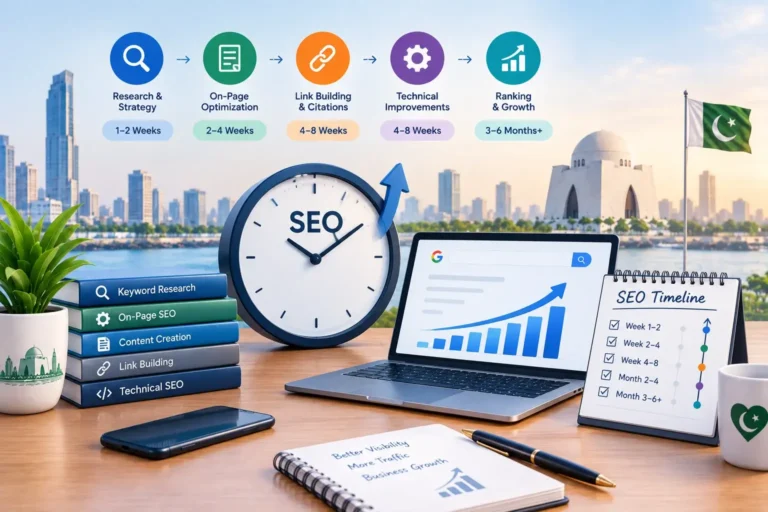
For a new site, it can take a few days to a few weeks to get indexed. Ranking well takes longer. Most businesses see steady movement after 3 to 6 months of steady work. If a page has been live for over a month and Search Console still says “not indexed,” it is time to look for one of the causes above.
A 10-Minute Diagnosis: Follow These Steps in Order
Do not guess. Work through this list from top to bottom and stop when you find the problem.
- Search site:yourwebsite.com. No results means Google has not indexed your site.
- Open Search Console and inspect your homepage. The tool says if the page is on Google and, if not, why.
- Check the Reading setting in WordPress. Make sure “Discourage search engines” is off.
- Open yourwebsite.com/robots.txt. Look for a line that blocks everything.
- Open your page’s source code and search for “noindex”. If you find it, remove it.
- Check that your sitemap loads. Try yourwebsite.com/sitemap_index.xml or /sitemap.xml.
- Open Search Console’s Pages report. Read the reasons Google gives for pages that are not indexed.
A Very Common Mistake: The Site Was Left in “Hidden” Mode
Many websites are built on a test address, and the developer turns on “discourage search engines” so the unfinished site stays hidden. When the site goes live, someone forgets to switch it back. The site looks perfect, but Google is told to stay away.
If your site launched recently and never appeared, check this first. It takes one minute and solves the problem more often than you would expect.
What If My Site Is Indexed but Still Does Not Rank?
This is a different problem. Google knows your pages, but it does not think they deserve a top spot yet. This usually means:
- Your pages are not as helpful as the ones already on page one.
- Your site has few links or mentions from other trusted sites.
- Your page does not match what searchers really want.
- Your site is new and has not built trust.
The fix is steady work: better pages, useful content, and honest links. This is exactly what on-page SEO and off-page SEO are for.
Local Businesses: Check Google Maps Too
If you serve customers nearby, your website is only half the story. People often find you on Google Maps first. If your business is not there, or your profile is half empty, you lose calls. Claim your profile, add your address, phone, hours, photos, and services, and ask happy customers for reviews. Our guide on how Karachi businesses can rank in the Google Map Pack walks you through it.
Mistakes That Make Things Worse
- Buying cheap links to “speed things up.” This can lead to a penalty.
- Changing your site’s address again and again. Each change resets Google’s trust.
- Copying text from other sites. Google skips repeated content.
- Blocking Google by accident with a security plugin. Check that Googlebot is allowed.
- Deleting pages without a plan. Old pages may have rankings you do not want to lose.
A Checklist to Use After You Fix the Problem
- Noindex is removed from the pages you want on Google.
- Robots.txt allows crawling.
- Your sitemap is submitted in Search Console.
- Your key pages are linked from your menu or homepage.
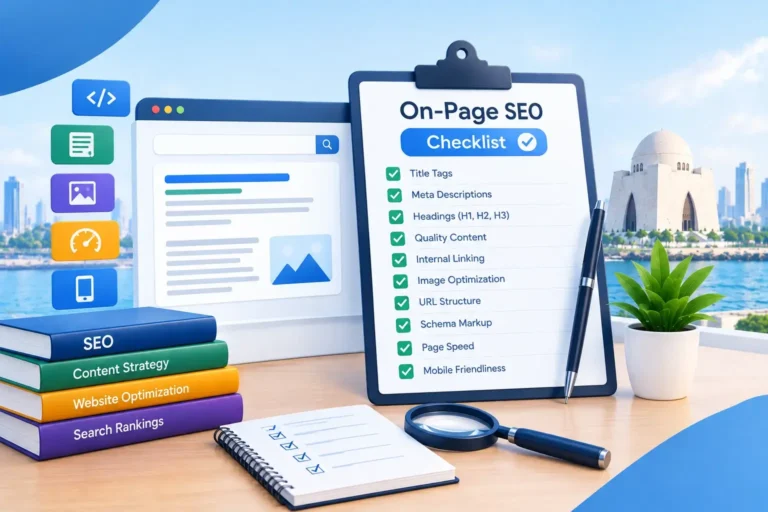
- Each page has a clear title, a single main heading, and useful text.
- Your site loads fast on a phone.
- You requested indexing for your most important pages once.
After this, give Google some time. Check Search Console once a week and look for changes.
Why Patience and Action Both Matter
Many owners either panic and change things every week, or they wait for months and do nothing. Neither helps. A better path is to fix any real blockers, improve your pages, and then give Google a few weeks before you judge. Keep notes on each change, so you can see what worked.
If your site is still missing after a month of clean settings, a full technical SEO check can find deeper issues, like server errors or blocked scripts, that are hard to spot by hand.
When to Ask an Expert for Help
- You see “noindex” or “blocked by robots.txt” and are not sure how to fix it.
- Search Console shows many errors you do not understand.
- Your traffic dropped suddenly after a site change.
- You suspect a hack or a penalty.
Getting help early can save weeks. A short audit usually shows what is wrong and what to do first.
Quick Questions
Why does my site show for my brand name but not for services?
Google knows your name, but your pages are not strong enough yet for service words. Focus on on-page SEO and better content.
Should I keep requesting indexing again and again?
No. Request once. Repeated requests do not speed things up. Fix the cause instead.
Can I pay Google to get indexed?
No. Ads are separate. Indexing is free and cannot be bought.
How can I check if one page is indexed?
Paste its full address into the URL Inspection tool in Search Console. It will say whether the page is on Google.
My developer says everything is fine. Should I still check?
Yes. Ask them to confirm the noindex setting, robots.txt, and sitemap. It only takes a few minutes.
Does a slow website stop Google from showing it?
Slow pages do not always block indexing, but they hurt crawling, visitors, and rankings. Fixing speed is worth it.
Do I need SEO if I just want to be indexed?
Indexing needs a few technical checks. Ranking well needs real SEO work over time.
Need Help Finding the Problem?
If you are stuck, SEO Company Karachi can check your site for free. We look at indexing, technical issues, and content, and we tell you what to fix first. You can request your free audit here.
Want More Calls From Google?
Get a free SEO audit from our team. We will check your site and tell you what to fix first. No pressure, no long contracts.